



QR Codes for Events
How do you use QR codes at an event, and how do you set them up well?
A QR code is a square pattern a phone camera reads and turns into a link or a short piece of data. At events they replace slow, manual jobs: finding a name on a printed list, handing out a paper agenda, hunting for a table, or asking people to type a survey address. Scanned at the right moment, a code saves time for attendees and staff alike.
The codes are simple. The planning is where events go wrong: a code too small to scan, a link that fails in a hall with no signal, or a code that carries more personal information than it should. This guide covers where QR codes help, how to create and place them, the size, contrast and testing basics, the security points to settle first, and a rollout checklist.
Updated by the Eventdex team



4.7/5 from 39 reviews on each
Where QR codes help at an event
Use a code where it saves a step. Each of these has a clear payoff for the person scanning.
| Use | What the scan does | Who scans |
|---|---|---|
| Ticket and check-in | Confirms registration and marks the person as arrived | Staff scan the attendee's ticket or badge |
| Badge | Lets staff, sessions or exhibitors recognize the attendee | Staff, session hosts and exhibitors |
| Self check-in kiosk | Opens a branded page where attendees enter their details | Attendees |
| Table or seat lookup | Opens a page that tells the guest where to sit | Attendees |
| Agenda or app download | Opens the schedule or the app store page | Attendees |
| Feedback and surveys | Opens a short survey on the phone | Attendees |
| Sponsor and exhibitor links | Opens a brochure, offer or booth page | Attendees |
| Registration | Opens the registration page from a poster or ad | Prospective attendees |
Tickets and check-in
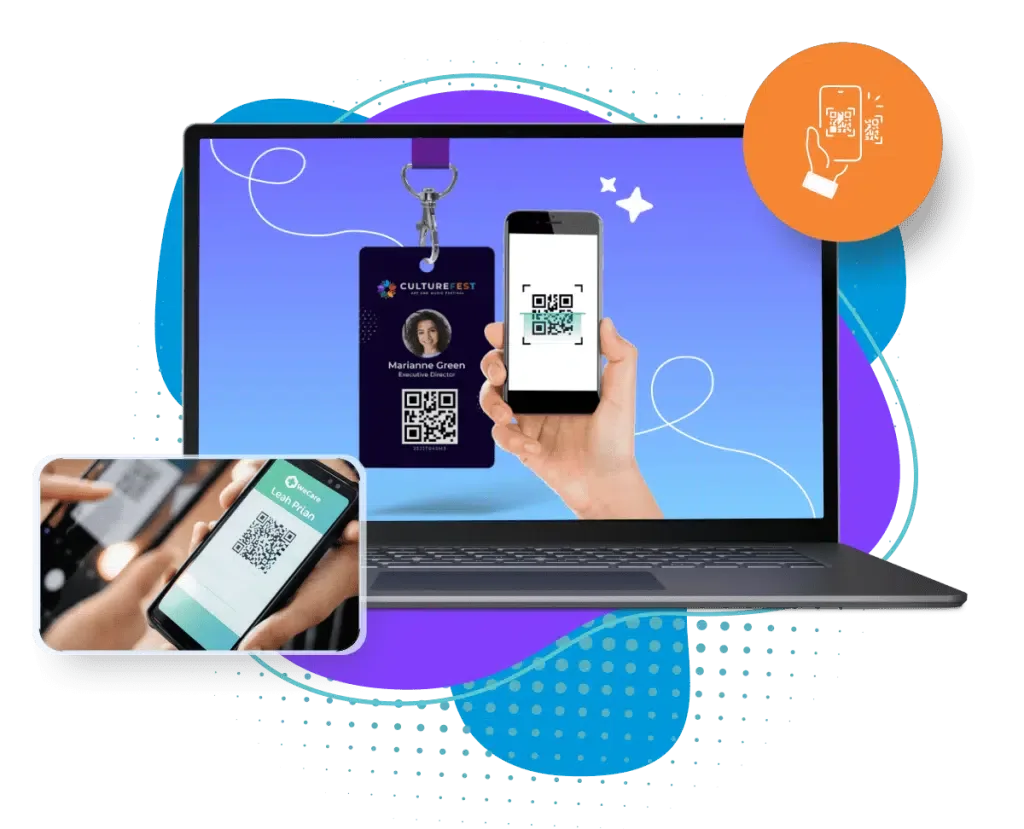
Check-in is the most common use. Each registrant receives a ticket or a badge with a code that belongs to them alone. At the door a staff member scans it with a phone or scanner, the system matches it to the registration and marks the person as arrived.
This is faster and more accurate than finding names on a list, and it gives you a live count of who is in the building. A system that flags a code scanned twice also gives you a warning that a ticket may have been shared.
Plan for a few real-world problems. Some guests will lose their ticket, so staff need a way to look people up by name. Some venues have weak signal, so ask how the scanning works when the connection drops. And have more than one scanner at busy times, so one device failing does not stop the line. The guide to event check-in covers the desk setup in more detail.
How to create and place QR codes
Work through these steps for any code you print or display.
Decide what the code opens
One code, one job. A code that opens a long page of mixed content confuses people. Link straight to the thing they want.
Choose static or dynamic
A static code holds fixed information and cannot be changed after printing. A dynamic code points to an address you can change later. For printed material, a dynamic code lets you fix a wrong link.
Make the link work on a phone
The page behind the code must load quickly and read well on a small screen. Do not send people to a page built for a desktop.
Add a short call to action
Tell people why to scan, such as Find your table or Rate this session. A bare code gets fewer scans.
Place it where people can scan
At eye level, on a flat surface, with room to stand back. Avoid curved surfaces, glossy finishes that reflect light, and places people cannot stop to scan, such as a moving walkway.
Print a text link as well
Add the short web address beneath the code for anyone whose phone does not scan it.
Test the final printed item
Scan the code from the real signs, badges and screens, not just from the design file. Do this on more than one phone.
Size, contrast and testing basics
These are general rules of thumb, not fixed standards. The right size depends on how far away the person scans from, and the only reliable check is to scan the real item.
Size and distance
A code on a handheld badge can be small because the scanner is close. A code on a sign or a stage screen must be much larger, because people scan from a distance. Scale up for distance.
Contrast
Dark code on a light background scans best. Avoid pale colors, low-contrast pairs and busy photo backgrounds. If you add brand colors, keep strong contrast.
Quiet zone
Leave a clear border of empty space around the code. Text or graphics touching the edge can stop it scanning.
Logos and styling
A logo inside the code or custom shapes can work, but each change raises the risk of failing to scan. Test every styled code.
Lighting and screens
Test in the lighting of the venue. On a screen, check that glare, brightness and refresh do not blur the code. On a printed badge, avoid a laminate that reflects.
Devices
Try an older phone and a newer one, an iPhone and an Android, and the actual scanner or app staff will use.
Beyond check-in: agenda, feedback and sponsor codes
Codes on signs and screens do a different job from codes on tickets. They are not tied to one person, so they carry no personal risk, but they still need care.
Agenda and app download
Put one code on the registration desk and on the first slide of each session that opens the schedule or the app page. Say what it opens, so people do not scan blindly.
Feedback and surveys
Show a survey code at the end of a session, while people are still in the room. A code on a slide that disappears in seconds gets few scans, so leave it up while you close.
Sponsor and exhibitor links
A sponsor code should open something worth the scan, such as an offer or a product page, and not a general home page. Check that the link works on a phone before you print.
Registration posters
A code on a poster or ad should open the registration page directly. Use a dynamic code so you can change the destination if the page moves.
Table and seat lookup
A single code on each table card or at the entrance can send guests to a lookup page. Keep the page fast and the search simple, because a line forms behind every slow scan.
Security basics for event QR codes
A QR code is only a way to carry information, so what it carries matters. Settle these points before you print anything. For rules on attendee data and ticketing where you operate, check with the local authority and your own advisers, as they vary by place.
Unique per attendee
Each ticket or badge should carry its own code, so one scan matches one person. A shared code cannot tell guests apart.
No personal data in the code
Do not put a name, email, phone number or payment details into the code itself. Let it carry a reference number and look the details up in the system behind it.
Link to trusted addresses only
Use an address you control. Printed codes can be covered by stickers, so check displayed signs during the event.
Watch for duplicates
If a code is scanned twice, the system should flag it so staff can check the person at the desk.
Limit what a scan shows
A scan at the door should confirm the person is registered. It does not need to show everything you hold about them.
Have a manual route
People lose phones and tickets. Staff need a way to verify an identity without the code.
QR rollout checklist
Run this list two weeks out, then again the day before the event.
List every code you will use
Tickets, badges, signs, screens, handouts. Note what each opens and who scans it.
Check each link
Open each destination on a phone. Confirm it loads on a mobile connection and shows the right content.
Confirm the codes are unique where they need to be
Tickets and badges must carry one code per attendee.
Scan the printed items
Scan badges, signs and table cards after printing, on several phones and in venue lighting.
Test scanning at speed
Scan a batch of badges the way staff will at the door, to see how fast the line moves.
Prepare for no signal
Find out how scanning behaves when the connection is weak and have a fallback list.
Train the staff
Show them how to scan, what a duplicate looks like and how to look someone up by name.
Check signs during the event
Walk the venue once or twice to confirm codes have not been covered or damaged.
QR codes on Eventdex
Eventdex uses QR codes in several places. These are the uses its own pages describe.
QR and barcode check-in
The check-in and badge printing page describes check-in by scanning QR codes or barcodes, self check-in and kiosks, and offline check-in that syncs when the connection is restored.
Check-in and badge printingKiosk QR code
For contactless check-in, set up a kiosk with a QR code and instructions. Attendees scan it to reach a branded page and enter their details. The attendee check-in app page describes self-service kiosks too.
Attendee check-in appBadge scanning
The badge scanner app uses a device camera to read QR codes or barcodes on event badges and check the attendee in.
Badge scanner appQR table finder
Guests scan a QR code, enter their name and are guided to their table. The seating page says the QR codes can be customized with logos and colors, and table assignments update in real time.
Event seating softwareNot described
The pages do not describe how codes are encoded or secured, so ask Eventdex directly if you need those details for a security review.
The Eventdex platform
QR check-in, badges and table finding together
- Check-in and badge printingQR and barcode check-in, kiosks and on-demand badges.Learn more about Check-in and badge printing
- Attendee check-in appScan tickets and check attendees in on a phone or tablet.Learn more about Attendee check-in app
- Badge scanner appScan QR codes and barcodes on event badges.Learn more about Badge scanner app
- Event seating softwareA QR table finder that guides guests to their seats.Learn more about Event seating software
“It's easy to use and interfaces very well with our needs. The scheduling function is awesome. It allows our companies and partners to schedule their meetings with no assistance thus reducing time and resources. In addition, if there are any snags in scheduling, the Eventdex staff takes care of your needs immediately.”
 University at Buffalo
 Eversource Energy
 Georgia Tech
 Influence Communications
FAQ
QR Codes for Events: common questions
How do QR codes work for event check-in?
Each ticket or badge carries a code that matches one registration. Staff scan it with a phone or scanner, the system finds the registration and marks the person as arrived.
Can I make a QR code for event registration for free?
Many free generators can turn a registration link into a code. For tickets and check-in, a registration system issues a unique code per attendee, which a free generator does not do.
What should I never put in an event QR code?
Do not put names, email addresses, phone numbers or payment details directly in the code. Use a reference and keep the details in the system behind it.
How big should an event QR code be?
It depends on how far away people scan. A badge can be small, while a sign or a screen needs a much larger code. The reliable check is to scan the real printed item from the real distance.
Do QR codes work without internet?
Scanning depends on the software, not the code itself. Eventdex's check-in and badge printing page says check-in can run offline in venues with poor connectivity and sync afterward. Always ask any vendor how scanning behaves without a signal.
Run QR check-in at your next event with Eventdex
Start with a free interactive floor plan, or talk to an event specialist on +1 (866) 434-5088.