



Event Badge Printing: Pre-Printed vs Onsite
How should you print badges for your event?
Event badge printing comes down to one choice and four details. The choice is when you print: all badges ahead of the event, each badge as the attendee arrives, or a mix of the two. The details are the printer and paper, the badge size, the layout and what you do when the line grows or a badge is wrong.
This guide walks through each in order, with a comparison table, a layout checklist, a queue-planning method and a reprint routine. It also says plainly what Eventdex's badge pages describe, so you can match your plan to the tools.
For badge artwork and wording, see the event badge design guide. For choosing a printer, see the name badge printer guide.
Updated by the Eventdex team



4.7/5 from 39 reviews on each
Pre-printed or onsite: choosing when to print
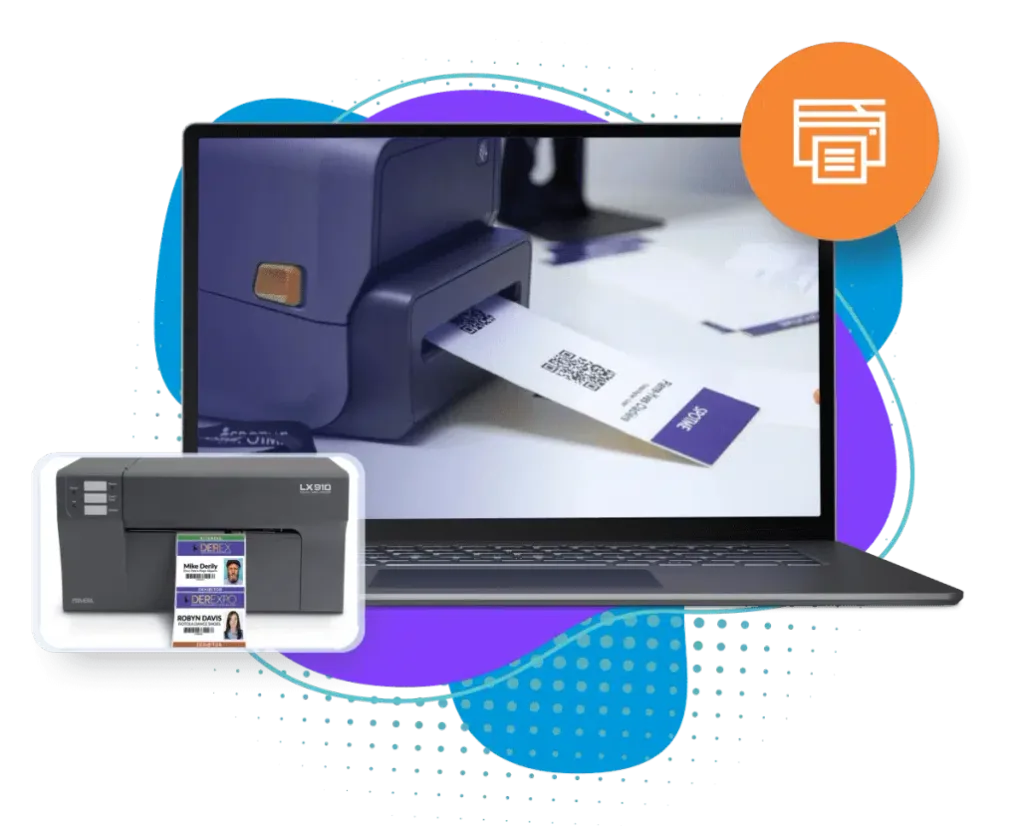
Pre-printed badges are printed in bulk before the event and handed out from a sorted tray. Onsite badge printing prints each badge when the attendee checks in. Many events use both: pre-print the registered list, and print onsite for walk-ins and changes.
The table compares the two. Use it to decide which fits your registration pattern.
| Pre-printed | Onsite | |
|---|---|---|
| When badges are printed | Days or hours before doors open | At check-in, one at a time |
| Desk speed | Fast: find the badge, hand it over | Depends on printer speed and staff |
| Late changes and walk-ins | Need a separate printer or a handwritten badge | Handled at the desk |
| Name or title corrections | Badge must be reprinted | Corrected before it prints |
| Equipment at the event | A sorted set of badges and a few spare blanks | Printers, supplies and power at every desk |
| Risk | Wrong or missing badges found only on the day | A printer jam holds up the line |
| Best for | Small, closed lists with few changes | Open registration, large lists, trade shows |
Printer, paper and size basics
Badge printing uses a printer that takes badge stock or labels. Most event teams choose between thermal printers, which print from heat and need no ink, and inkjet label printers, which print in colour.
Eventdex's badge pages list Zebra, Brother and Epson printers, including the Epson C4000, Zebra ZC10L, Zebra ZD621 and Brother QL-800, and say you can print from iOS, Android, iPads, notebooks and tablets, or through QZ Tray. They describe standard 4x3 and 3x4 inch badges as well as fully customizable layouts.
Printer type
Pick for the badge look you need: black and white is fastest, colour suits sponsor logos and ribbons by category.
Stock
Match the stock to the printer, and to how the badge is worn: a lanyard hole, a clip, a sleeve or a sticker.
Size
A larger badge is easier to read across a room. Check that the printer's maximum badge size matches your layout before ordering stock.
Spares
Carry more stock than registrations, plus a spare printer or the means to swap one quickly.
A badge layout checklist
A badge is read at arm's length and in motion. Use this list before you print the full run.
First name large
The first name is what people use in conversation. Make it the biggest line.
Company and title below
Smaller, but legible without squinting. Keep long names from wrapping onto a third line.
Attendee type
Show the ticket type, such as attendee, speaker, sponsor or staff, in a block of its own or by colour.
QR code or barcode
Leave a clear, quiet margin around it and keep it flat, so a scanner reads it on the first try.
Print safe area
Keep text away from the edges, the lanyard slot and any fold.
Test the long names
Run your longest name, title and company through the layout, and a name with accents or non-Latin characters.
Test print and scan
Print one of each badge type and scan it before the full run.
What Eventdex describes for badge printing
These points come from Eventdex's own badge designer, check-in and scanner pages.
Design and print from registration
The badge designer offers templates, a drag-and-drop editor, QR codes or barcodes, and pulls attendee details from registration. It supports printing in bulk before the event or instantly onsite.
Event badge designer toolEdit details in real time
The designer page says badge details can be edited without starting from scratch when a name changes or someone registers late.
Onsite check-in and printing
The onsite check-in page describes instant badge printing at check-in, self-service kiosks and offline check-in for venues with poor connectivity.
Onsite check-in and badge printingScanning badges
The Scan Attendee badge scanner reads QR codes and barcodes with a device camera, with offline support.
Badge scanner app
Planning for queues
Onsite printing moves the wait from the desk to the printer. Plan the desk the way you would plan a checkout, with the numbers from your own event rather than a rule of thumb.
Estimate the arrival peak
Look at the arrival pattern of past events, or ask the venue when most people enter. Most arrivals bunch in the half hour before the first session.
Time one badge
Check in and print a badge start to finish with your actual setup. That is your per-desk speed.
Work out desks and printers
Divide expected peak arrivals by what one desk can handle in the same time. Add a spare printer.
Split the lines
Separate lines by alphabet, by ticket type, or for pre-printed pick-up, walk-ins and help. Pre-printed pick-up is the fastest line.
Offer self check-in
Self-service kiosks take simple check-ins off the staffed desks.
Have an offline plan
Know what you do if Wi-Fi fails. Eventdex describes offline check-in; confirm your printers and the process in a test.
Handling reprints and problems
Every event reprints some badges. Decide the routine before doors open so the desk does not improvise.
| Problem | What to do | Why |
|---|---|---|
| Misspelled name | Correct the record, then reprint | A reprint from the corrected record keeps the badge and the list in step |
| Lost badge | Verify identity, reprint, note it | Stops two copies of the same badge being in use |
| Wrong ticket type | Correct the type, reprint and collect the old badge | Access and colours depend on the type |
| Walk-in | Register at the desk, then print | The badge and the attendee list come from the same record |
| Printer jam or low stock | Switch to the spare printer, fix the first one off the line | Keeps the line moving |
The Eventdex platform
Badges from design to the door
- Badge designerTemplates, QR codes and barcodes, and printing from registration.Learn more about Badge designer
- Onsite check-inCheck-in, kiosks and instant badge printing at the venue.Learn more about Onsite check-in
- Badge scannerScan badges with a phone or tablet camera, with offline support.Learn more about Badge scanner
“Eventdex helped me run a smooth registration process during my event and helped me deliver an excellent mobile application to my event's attendees. Their support team was brilliant and I really enjoyed incorporating the Eventdex solutions into my events.”
 University at Buffalo
 Eversource Energy
 Georgia Tech
 Influence Communications
FAQ
Event Badge Printing: Pre-Printed vs Onsite: common questions
Should I pre-print or print badges onsite?
Pre-print when your list is closed and changes are few, because the desk is then just a hand-over. Print onsite when registration stays open, names change or you expect walk-ins. Many events do both: pre-print the registered list and print onsite for the rest.
What printers does Eventdex support for badges?
Eventdex's pages name Zebra, Brother and Epson printers, and list the Epson C4000, Zebra ZC10L, Zebra ZD621 and Brother QL-800. They say you can print from iOS, Android, iPads, notebooks and tablets, or with QZ Tray. Confirm your exact model in a demo.
What size should an event badge be?
Eventdex's badge designer describes standard 4x3 and 3x4 inch badges as well as custom layouts. The right size is the one your printer and stock support and that leaves room for a large first name and a scannable code.
Can I change a badge after it has been designed?
The designer page says details can be edited in real time, so a name change or late registration does not mean starting again. A badge that is already printed has to be reprinted.
Can badges be scanned at session doors?
Eventdex's badge scanner page describes scanning QR codes and barcodes on badges with a device camera for check-in and access control, with offline support.
How many badge printers do I need?
Time one badge with your own setup, estimate the arrival peak from past events, and divide. Add a spare printer. Eventdex's pages do not give a printers-per-attendee figure and this guide does not invent one.
Print badges from your registration list with Eventdex
Start with a free interactive floor plan, or talk to an event specialist on +1 (866) 434-5088.