



How to Choose a Name Badge Printer
Which name badge printer is right for your event?
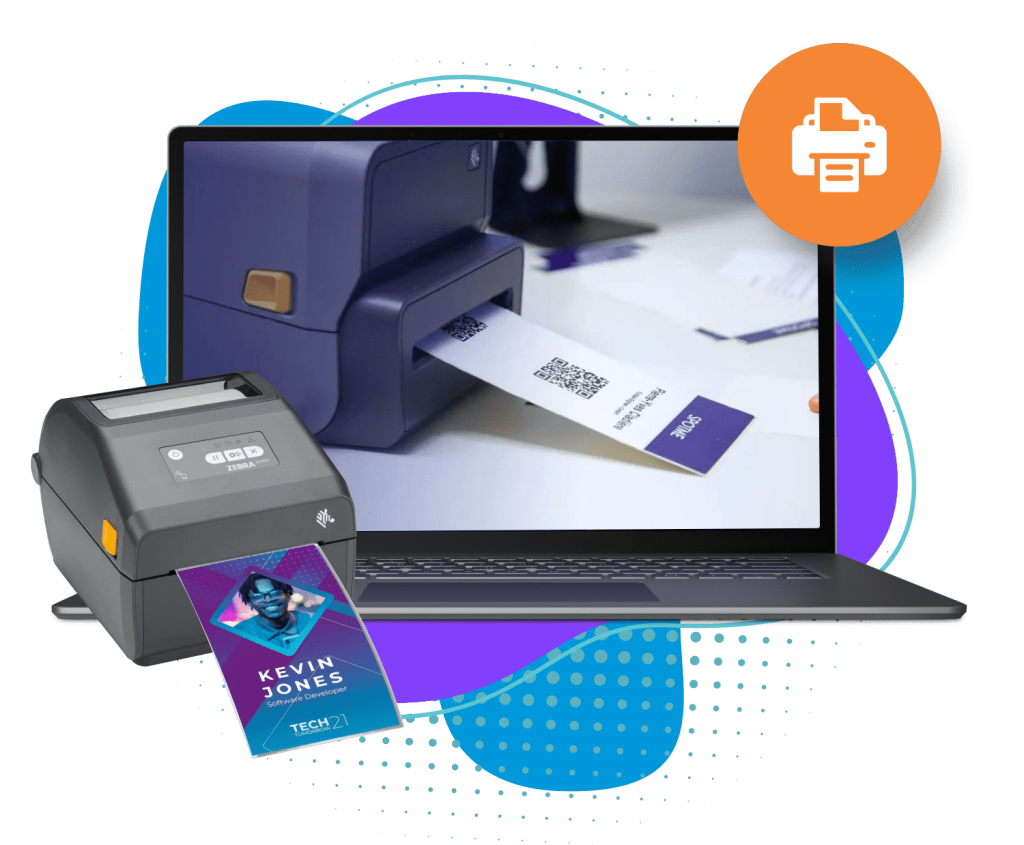
For most conferences and trade shows that print badges as attendees arrive, the usual choice is a direct thermal label printer: it prints without ink or ribbons, on rolls of badge-sized labels, fast enough to keep a check-in line moving. Zebra and Brother are two brands widely used this way. If you want durable plastic badges, you need a card printer; if you are printing a small batch in advance, an office printer and perforated badge sheets can be enough.
The right printer depends less on the brand than on five decisions: whether you print on demand or in advance, the badge size and stock, color, how the printer connects to your check-in devices, and whether your check-in software supports it. This guide walks through each, then covers how many printers you need, how to set up stations, and how to fix the problems that come up most often on the day.
Updated by the Eventdex team


4.7/5 from 39 reviews on each
Types of name badge printer
Name badge printers fall into a few groups. Most events use one; some pre-print most badges and keep label printers for walk-ins and reprints.
| Printer type | Prints on | Best for | Watch out for |
|---|---|---|---|
| Direct thermal label printer | Heat-sensitive label rolls, die-cut to badge size or continuous | Printing on demand at check-in desks and kiosks | Usually black only; prints can fade with heat or sunlight |
| Thermal transfer label printer | Labels or tags, using a ribbon | Longer-lasting prints | Ribbons to buy and change |
| Color label printer | Full-color label or tag stock | Full-color badges printed onsite | Ink to manage and replace |
| Card printer | PVC plastic cards | Durable badges for multi-day events, staff and VIPs | Card stock and ribbons to manage |
| Office laser or inkjet printer | Perforated badge sheets, several badges per page | Pre-printing a small event in advance | Not practical for printing one badge at a time at check-in |
How to choose a name badge printer
Work through these decisions in order; each one narrows the next:
Decide when badges are printed
Pre-printing means sorting badges into alphabetical piles and reprinting for every change. Printing on demand prints only for people who arrive and picks up last-minute changes, but needs a printer at each station.
On-demand badge printingChoose the badge size and stock first
Common sizes include 4 x 3 inches and 4 x 6 inches. The printer has to take that stock, and the stock has to fit your badge holders.
Single-sided, double-sided or folded
A badge that flips on its lanyard should read the same on both sides. A fold-over badge with the front repeated on the back half does that on a single-sided printer.
Decide on color
Black printing on pre-printed color badge stock gives you branding without color printing onsite. Print color at the desk only if the design needs it.
Check how it connects
USB to a laptop, or Wi-Fi or a wired network for tablets and phones. Network printers can serve several devices but depend on a network that works on the day.
Confirm your check-in software supports it
The printer must work with the app you check in with, on the devices you use, at your badge size. Check the software's supported hardware list before you buy or rent.
Plan supplies and calibration
Order more stock than you expect to need, and calibrate each printer to the stock you are using before doors open.
Buy or rent
Buying suits teams that run several events a year with the same setup. For a single event, renting printers along with the check-in devices is often simpler.
How many printers you need, and how to set them up
There is no universal ratio of printers to attendees. It depends on how many people arrive in your busiest half hour and how quickly each station can find a person, check them in and print. Time a test run with your real setup, then size the stations for the peak, not the day's average.
Then set the stations up so they stay reliable:
Pair each device with one printer
Label each tablet and the printer it prints to, for example with the printer's IP address, so staff can tell which is which.
Keep devices and printers on one network
Devices find network printers on the same network. A separate network for registration avoids competing with attendee Wi-Fi.
Use the cutter if there is one
Tearing badges off by hand can knock a label printer out of calibration.
Keep spares
A spare printer, extra rolls and a printed attendee list for the worst case.
Test at the venue
Print real badges on the real stock, on the venue's network, the day before.
Common badge printer problems and fixes
Most problems on the day come down to calibration, connection or settings. These fixes apply to label printers in general; check the manufacturer's instructions for your model.
| Problem | Likely cause | What to try |
|---|---|---|
| Prints two labels instead of one | Calibration lost, often after a badge was torn off by hand | Switch the printer off and on, or recalibrate; use the cutter if the printer has one |
| Badge stretches across a long fold-over label | Printer calibrated to the wrong label length | Recalibrate, then disconnect and reconnect the device so it picks up the new settings |
| Wrong size, cut off or shifted | Badge size, margins or media type set wrong in the driver | Set the exact badge dimensions, zero margins and portrait orientation, and the right media type |
| Printer not found | Device and printer on different networks, or the print service is not running | Put both on the same network and restart the print service or app |
| Prints to the wrong printer | Device connected to another printer on the network | Reconnect to the assigned printer in the app's printer settings |
| All-black labels | The app or print job has hung | Close and restart the check-in app |
| Badge does not match the design | Wrong badge template selected at that station | Select the right template and compare settings with a station that works |
Badge printing with Eventdex
Eventdex prints badges from its ScanAttendee check-in app. The Eventdex help center covers:
Zebra and Brother printers
Print from the ScanAttendee app on an iPad or phone to Zebra or Brother printers on the same network, including double-sided badges.
Check-in and badge printingLaptops and Macs
Print from the ScanAttendee web app on a PC, by USB or through QZ Tray for Wi-Fi printers, or on a Mac through QZ Tray.
Badge printing with QZ TrayA badge designer
Design badges with attendee fields, text, images and QR codes, including a ready template for Avery 5392 sheets.
Event badge designerBulk and kiosk printing
Bulk print a batch of badges, or let attendees print their own at a self check-in kiosk, with re-prints and automatic check-in.
Check-in kiosksLabels and images by ticket
Print extra badge labels or images assigned by ticket or tag, such as one for each pass an attendee holds.
Multi-image badge printingSupported devices and rentals
The printers, scanners, tablets and routers the onsite apps support are listed on one page, and printers, iPads and kiosks can be rented for an event.
Supported devices
The Eventdex platform
Design, print and check in from one app
- Check-in and badge printingPrint badges on demand as attendees check in, on supported label printers.Learn more about Check-in and badge printing
- Badge designerDrag-and-drop badge layouts with attendee fields and QR codes.Learn more about Badge designer
- Check-in kiosksSelf-service check-in where attendees print their own badge.Learn more about Check-in kiosks
- Badges and lanyardsBadge stock, PVC badges, lanyards and holders for in-person events.Learn more about Badges and lanyards
- Multi-image badgesBadge labels and images assigned by ticket or tag.Learn more about Multi-image badges
“We really appreciated the adaptability of the software to meet our changing needs. For example, we liked being able to create promo codes to offer reduced rates to conference attendees with special circumstances.”
 University at Buffalo
 Eversource Energy
 Georgia Tech
 Influence Communications
FAQ
How to Choose a Name Badge Printer: common questions
What printer is used for name badges?
Events that print badges at check-in mostly use direct thermal label printers, such as Zebra and Brother models, on rolls of badge-sized labels. Card printers are used for plastic badges, and office printers with perforated sheets for small pre-printed batches.
Can I print name badges on a regular printer?
Yes, on perforated badge sheets such as Avery 5392, which fit several badges on a page. It works for pre-printing a small event, but not for printing one badge at a time as people arrive.
Is a thermal or inkjet printer better for badges?
Thermal for speed and no ink, usually printing black on pre-printed color stock. A color label or inkjet printer when the badge itself needs full color printed onsite.
How many badge printers do I need?
Enough for your busiest arrival period, not the day's average. Time a test check-in with your real setup, work out how many stations the peak needs, give each its own printer, and keep a spare.
What size is a standard name badge?
Common sizes are 4 x 3 inches and 4 x 6 inches, plus fold-over badges with the front repeated on the back half, so they read the same on both sides. Choose the size first, then a printer and holders that fit it.
Which badge printers work with Eventdex?
The Eventdex help center covers Zebra and Brother printers, from the ScanAttendee app on iPads and phones and from the web app on a PC or Mac. The full list of supported devices is on the Eventdex devices page.
Print badges onsite with Eventdex
Start with a free interactive floor plan, or talk to an event specialist on +1 (866) 434-5088.